
Quickstart
The bundledexamples/agent_service backend ships with the team tools enabled, and the matching examples/web_ui frontend renders team membership and per-worker streams out of the box. Follow the Agent Service quickstart to boot both — once they are running, ask the leader agent to assemble a team and you will see it call TeamCreate / AgentCreate automatically, watch workers come online, and observe them exchange messages in the UI.
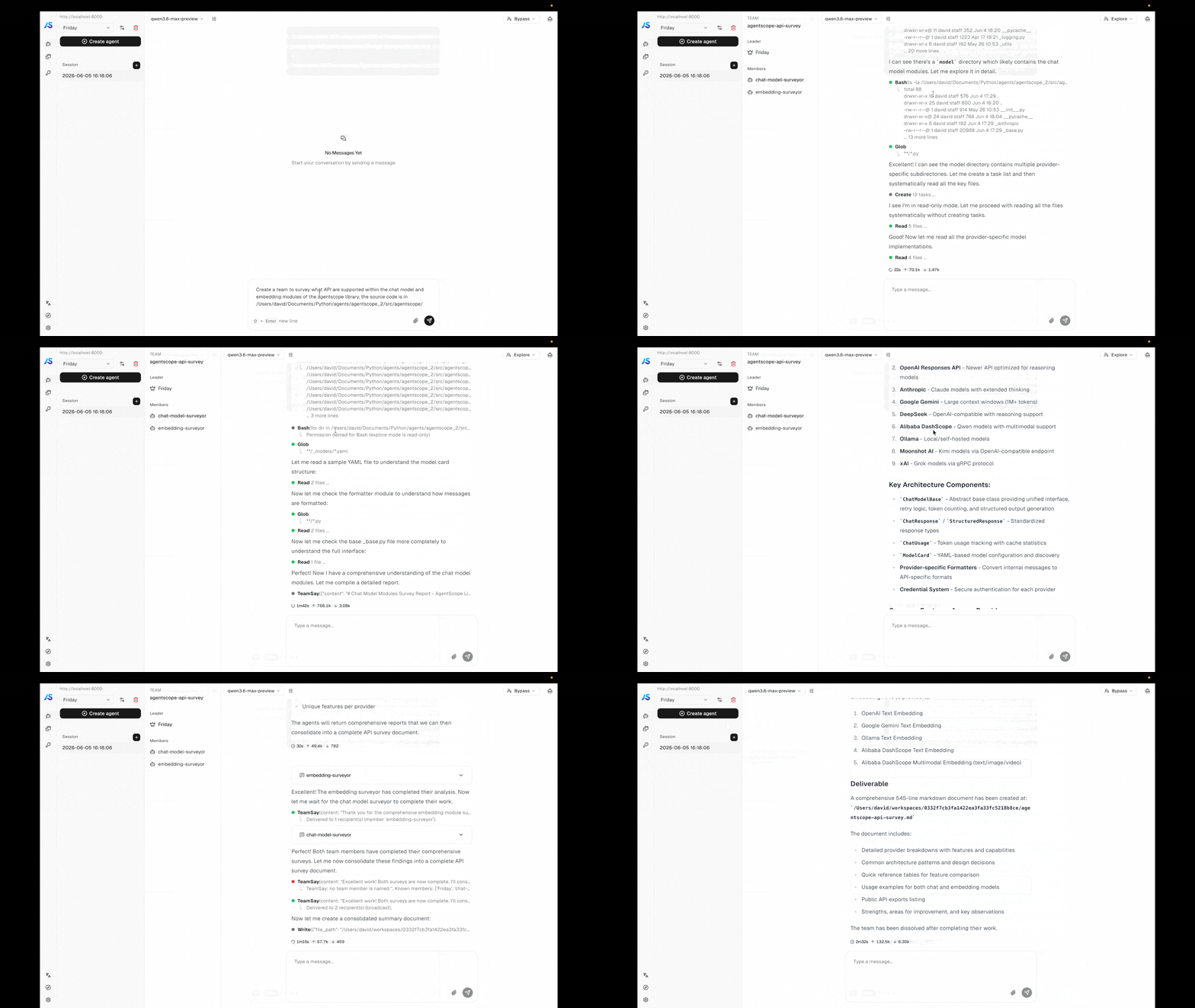
A leader agent assembling a team and coordinating workers in the example web UI.
Concepts
Usage
Create a team
The team feature is built into Agent Service — no extra configuration is required. When a user sends a task that benefits from multi-agent collaboration, the leader agent automatically uses the built-in team tools to assemble and coordinate a team of workers. Out of the box, the leader agent can:- Create a team with a name and description that frames the collaboration goal.
- Spawn workers by giving each a name, role description, and an initial task. Workers begin executing immediately upon creation.
- Invite existing agents to join the team, coordinate and communicate with them.
- Exchange messages with workers to provide follow-up instructions or collect results.
- Dissolve the team when the task is complete, cleaning up all worker sessions.
Custom sub-agent types
By default, every worker spawned byAgentCreate uses the same built-in system prompt and permission context. In practice, different roles need different capability boundaries — an agent that only explores the codebase should not be able to modify files, while one that writes code needs full edit access. SubAgentTemplate solves this by letting you define reusable blueprints that the leader agent can choose from when creating workers.
Registering templates
Pass a list ofSubAgentTemplate instances to create_app via the sub_agent_templates parameter:
Template fields
System prompt placeholders
Thesystem_prompt_template string is formatted with these variables when a worker is created:
Runtime behavior
- No custom templates registered —
AgentCreatedoes not expose asubagent_typeparameter at all. All workers use the built-in default template. This keeps the tool schema clean when templates are not needed. - Custom templates registered —
AgentCreateautomatically gains asubagent_typeenum field listing all available types (including"default"). The leader agent sees each type’s description and can choose which one to use. - Overriding the default — registering a template with
type="default"replaces the built-in default template entirely. - Uniqueness — template type names must be unique. Duplicate types cause a
ValueErrorat startup.
Set invitation scope
When creating/editing an agent, you can set if the agent can be invited to join a team by setting theInvitable and Invite description fields.
Invitable: If the other agents can invite this agent to join a team.Invite description: The description of the agent that will be shown to the leader when inviting this agent to join a team.
Architecture
Built-in tools
A leader session is automatically given these tools. Workers see onlyTeamSay.
When deleting a team, agents created within the team (via
AgentCreate) will be permanently deleted, while invited agents (via AgentInvite) will not be affected — only their association with the team will be removed.Coordination model
Agent Team is designed for distributed deployments by default. All inter-member communication is mediated by the message bus — a Redis-backed abstraction — so leader and worker sessions can live in different processes or different nodes without any code change. The sender writes to the recipient’s inbox; any wakeup dispatcher in the cluster can then claim the wakeup signal and drive that session on its own process. This is the same mechanism that powers scheduled fires and background-tool completions, which is why the team feature scales out the same way the rest of the service does. Team communication reuses the same inbox + wakeup primitives the service uses for scheduled fires and background-tool completions:- The sender’s tool call (
TeamSay,AgentCreate’s initial prompt, …) pushes aHintBlockonto the recipient session’s inbox via the message bus. - A wakeup is enqueued for the recipient.
- The wakeup dispatcher running on any process picks up the wakeup and drives
ChatService.runfor that session. InboxMiddlewaredrains the inbox before the next reasoning step, so the queued team messages land in the recipient’s context asHintBlockEvents.
TeamSay back to it.
See also
Agent Service
The hosting layer that powers teams — sessions, message bus, workspace lifecycle.
Agent
The agent abstraction each team member runs.